> ## Documentation Index
> Fetch the complete documentation index at: https://docs.lunarmc.ai/llms.txt
> Use this file to discover all available pages before exploring further.
# How to Review & Approve Ad Spend
## Overview
The [**Ad Spend Tracker**](https://app.superorbital.ai/portal/spend-tracker) is SuperOrbital's centralized tool for managing monthly ad spend approvals, budgets, and variable paid media fees.
Each month, Paid Media teams are responsible for:
1. Confirming the correct clients and paid media platforms are included.
2. Reviewing and approving actual ad spend.
3. Making any necessary spend adjustments.
4. Setting client budgets for the next three months.
Once spend has been approved and budgets have been entered, SuperOrbital automatically calculates applicable retainers and performance fees and moves the client into the billing workflow.
***
## Step 1: Open the Ad Spend Tracker & Select Your Billing Month
Go to **Agency Dashboard**. Under **Reports**, select **Ad Spend Tracker**.
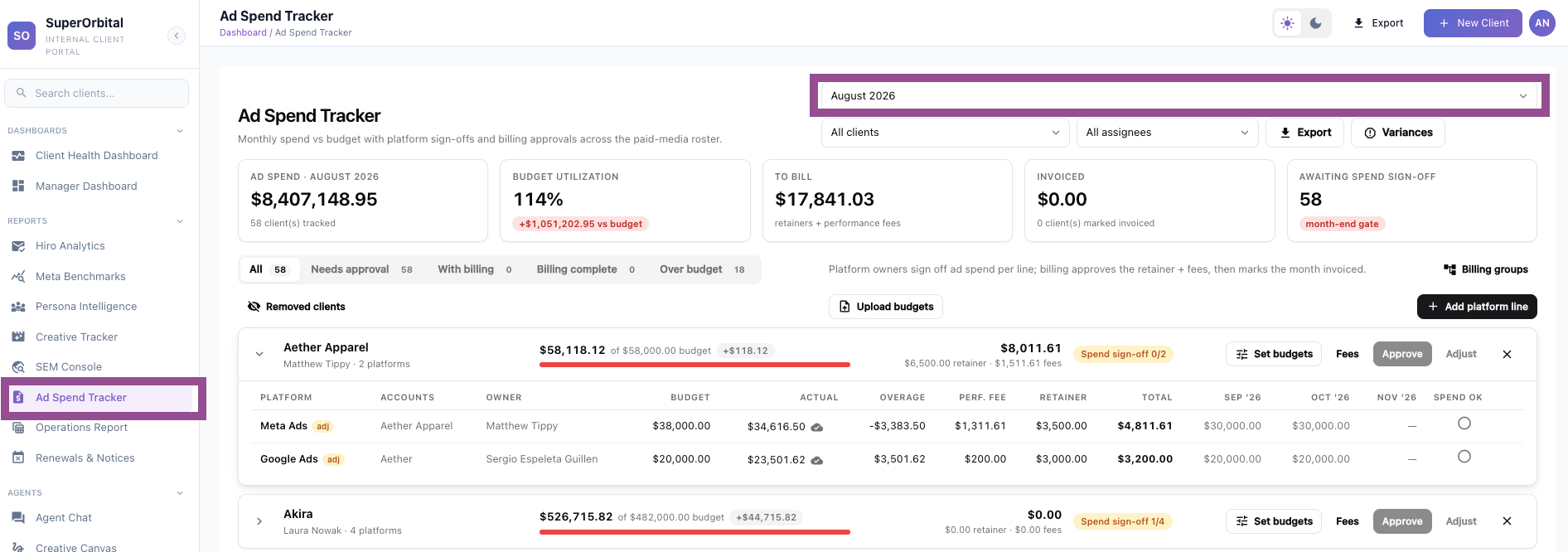
Before reviewing any spend, use the first dropdown at the top of the page to select the month you're completing approvals for.
The Ad Spend Tracker defaults to the **current month**, so you'll typically need to select the previous month during monthly billing.
For example, if you're completing August billing on September 1, select **August 2026** before beginning your review.
 ***
### Filter Your View
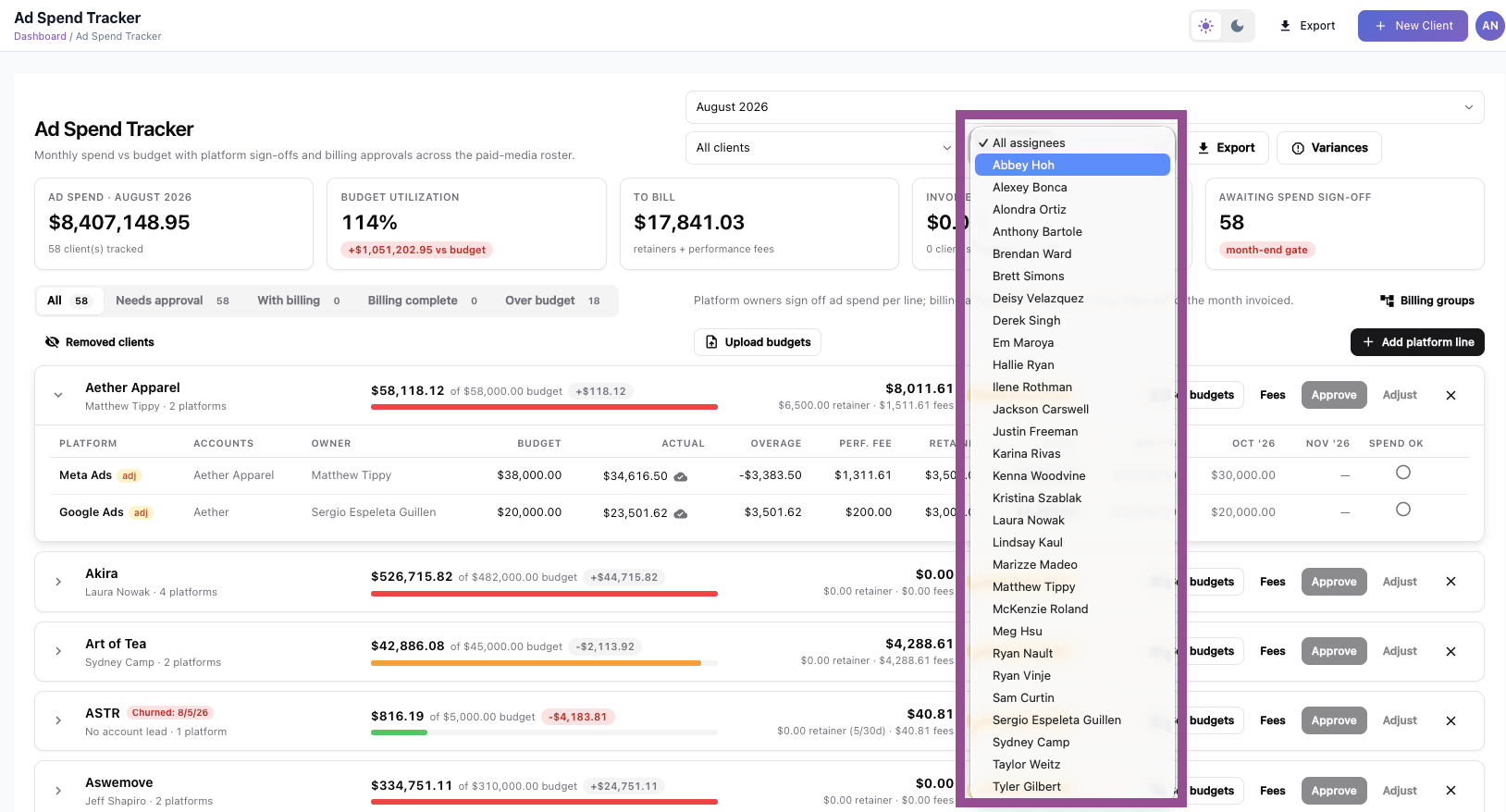
Use the filters at the top of the page to narrow the Ad Spend Tracker by:
* **Client**
* **Assignee**
Filtering by **Assignee** can be especially helpful during monthly billing. This allows each Paid Media team member to quickly view and work through all of the clients they're responsible for approving.
***
### Filter Your View
Use the filters at the top of the page to narrow the Ad Spend Tracker by:
* **Client**
* **Assignee**
Filtering by **Assignee** can be especially helpful during monthly billing. This allows each Paid Media team member to quickly view and work through all of the clients they're responsible for approving.
 ***
### Understand the Billing Summary
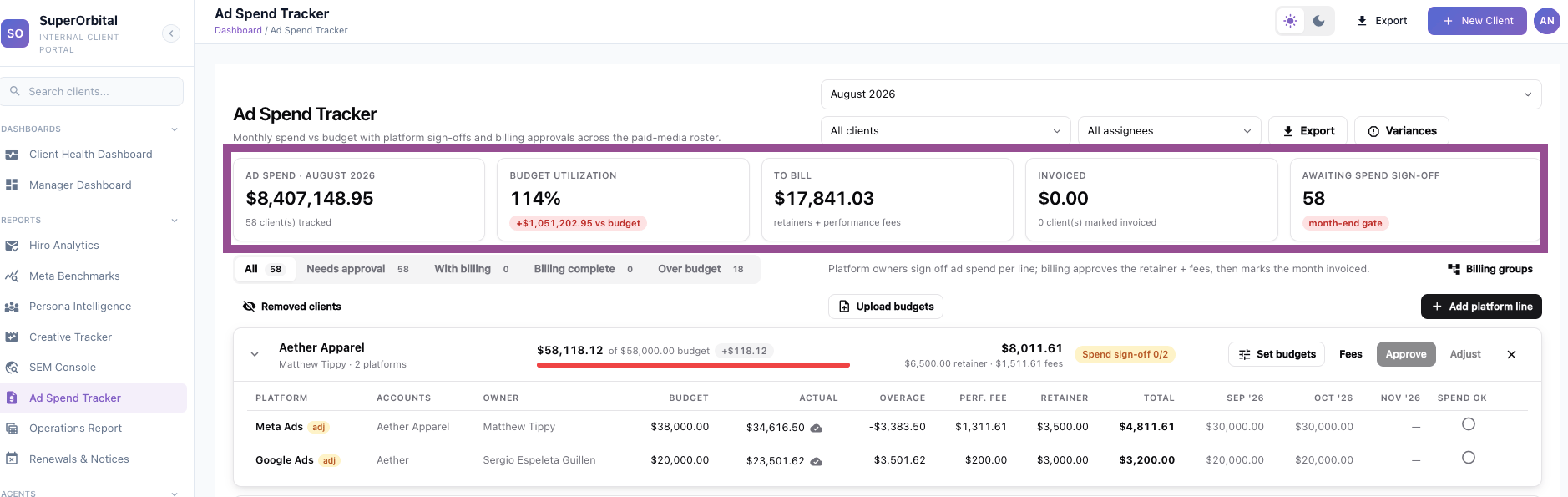
At the top of the Ad Spend Tracker, five scorecards provide a high-level view of the selected month's paid media spend and billing status.
* **Ad Spend** – Total actual ad spend across all included clients, channels, and accounts for the selected month.
* **Budget Utilization** – Compares actual ad spend against the month's budget to provide a high-level view of whether spend finished on, above, or below plan. This can also provide context when investigating monthly revenue fluctuations.
* **To Bill** – Total paid media revenue expected to be billed for clients with variable fee structures, including retainers and applicable performance fees.
* **Invoiced** – Total revenue that has already been invoiced through QuickBooks.
* **Awaiting Spend Sign-Off** – Number of client/platform combinations that still require Paid Media approval or adjustment.
***
### Understand the Billing Summary
At the top of the Ad Spend Tracker, five scorecards provide a high-level view of the selected month's paid media spend and billing status.
* **Ad Spend** – Total actual ad spend across all included clients, channels, and accounts for the selected month.
* **Budget Utilization** – Compares actual ad spend against the month's budget to provide a high-level view of whether spend finished on, above, or below plan. This can also provide context when investigating monthly revenue fluctuations.
* **To Bill** – Total paid media revenue expected to be billed for clients with variable fee structures, including retainers and applicable performance fees.
* **Invoiced** – Total revenue that has already been invoiced through QuickBooks.
* **Awaiting Spend Sign-Off** – Number of client/platform combinations that still require Paid Media approval or adjustment.
 ***
### Understand the Ad Spend Tracker Tabs
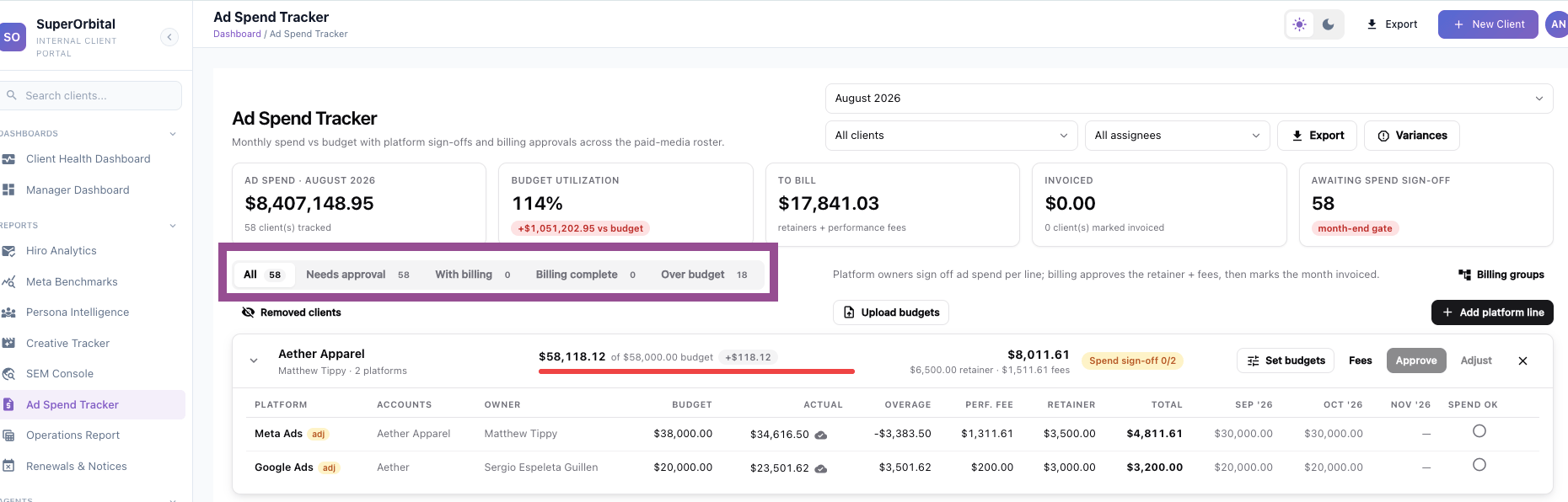
Use the tabs below the billing summary to quickly view clients based on their current billing status.
* **All** – All paid media clients with variable fee structures.
* **Needs Approval** – Clients and platforms where Paid Media still needs to approve or adjust spend.
* **With Billing** – Clients and platforms with approved spend that are ready for Billing to invoice.
* **Billing Complete** – Clients and platforms where billing has been completed and invoices have been sent.
* **Over Budget** – Clients whose actual spend exceeded the forecasted budget for the selected month.
***
### Understand the Ad Spend Tracker Tabs
Use the tabs below the billing summary to quickly view clients based on their current billing status.
* **All** – All paid media clients with variable fee structures.
* **Needs Approval** – Clients and platforms where Paid Media still needs to approve or adjust spend.
* **With Billing** – Clients and platforms with approved spend that are ready for Billing to invoice.
* **Billing Complete** – Clients and platforms where billing has been completed and invoices have been sent.
* **Over Budget** – Clients whose actual spend exceeded the forecasted budget for the selected month.
 ***
### Understand Each Client Table
Each paid media client with a variable fee structure is listed in an individual table.
Expand a client to see each paid media platform managed by Lunar and the corresponding billing information.
#### Platform & Account
**Platform** identifies the paid media channel, such as Meta, Google Ads, or TikTok.
**Account** identifies the specific ad account connected to SuperOrbital. Clients with multiple accounts on the same platform may have multiple accounts represented.
#### Owner
The **Owner** is the Service team member responsible for reviewing and approving or adjusting spend for that platform.
#### Budget
The **Budget** represents the budget entered for the selected month during the previous month's billing process.
#### Actual
The **Actual** column displays the client's ad spend automatically pulled into SuperOrbital from the connected advertising platform.
#### Overage
**Overage** shows the difference between the client's budget and actual spend for the month.
Spend that finishes **20% or more above or below budget** is highlighted in red to call attention to a significant variance.
#### Performance Fee
The **Performance Fee** is calculated automatically using the client's variable fee structure from their contract.
Performance fees are most commonly based on managed ad spend using tiered spend thresholds that may be calculated **incrementally or cumulatively**, depending on the client's contract.
If the client's spend only meets the minimum retainer requirement, the Performance Fee will display **\$0**.
If spend reaches the applicable performance fee threshold, this field represents the additional variable revenue earned above the client's minimum retainer.
#### Retainer
The **Retainer** is the minimum monthly retainer for the applicable service line item as defined in the client's contract.
#### Total
**Total** represents the total amount to be billed for that platform and month, including the **Retainer + applicable Performance Fee**.
#### Upcoming Budgets
The next three columns display the client's budgets for the upcoming three-month period.
Paid Media teams are responsible for updating these budgets each month as part of the spend approval process.
#### Spend OK
The **Spend OK** column is where the responsible Paid Media team member confirms that the month's actual spend has been reviewed and is approved for billing.
***
## Step 2: Confirm Your Clients & Platforms
Before approving spend, confirm that all of your clients with **variable paid media fee structures** are represented in the Ad Spend Tracker with the correct platforms.
If a client or platform is missing or appears incorrectly, contact **Erin Tarr** or submit the request through **#super-orbital-product** before completing your approvals.
***
## Step 3: Review & Approve Actual Ad Spend
Review the amount displayed under **Actual** and compare it against the final monthly spend reported directly in the corresponding advertising platform.
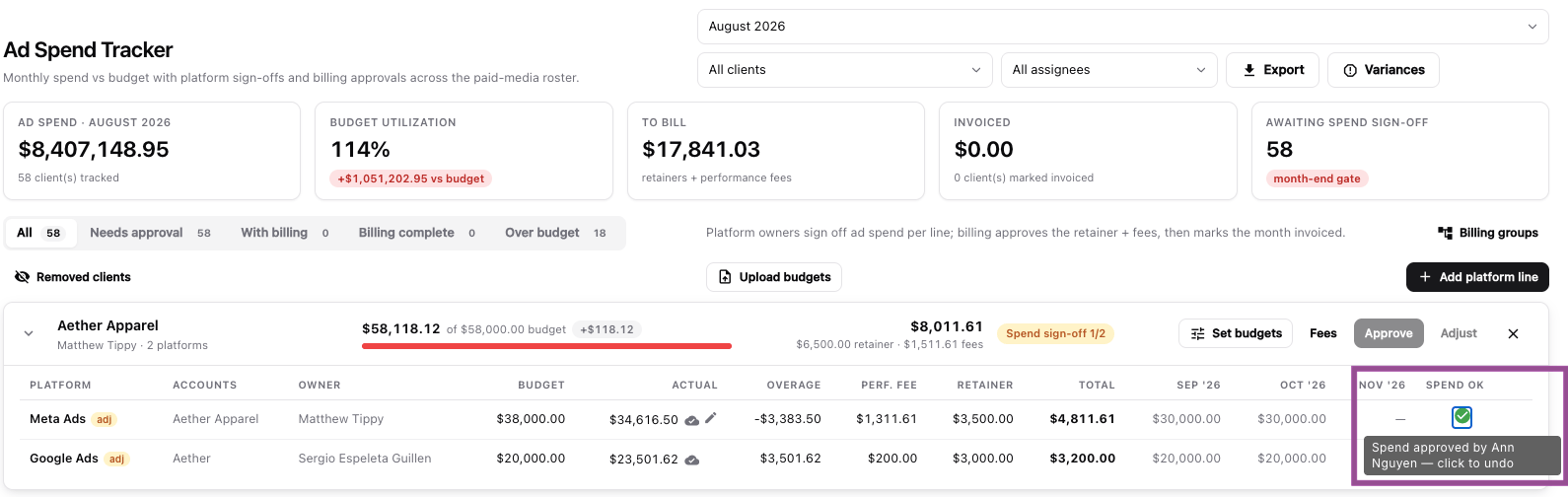
### If Spend Is Correct
Click the circle under **Spend OK** to confirm that the spend has been reviewed and approved.
***
### Understand Each Client Table
Each paid media client with a variable fee structure is listed in an individual table.
Expand a client to see each paid media platform managed by Lunar and the corresponding billing information.
#### Platform & Account
**Platform** identifies the paid media channel, such as Meta, Google Ads, or TikTok.
**Account** identifies the specific ad account connected to SuperOrbital. Clients with multiple accounts on the same platform may have multiple accounts represented.
#### Owner
The **Owner** is the Service team member responsible for reviewing and approving or adjusting spend for that platform.
#### Budget
The **Budget** represents the budget entered for the selected month during the previous month's billing process.
#### Actual
The **Actual** column displays the client's ad spend automatically pulled into SuperOrbital from the connected advertising platform.
#### Overage
**Overage** shows the difference between the client's budget and actual spend for the month.
Spend that finishes **20% or more above or below budget** is highlighted in red to call attention to a significant variance.
#### Performance Fee
The **Performance Fee** is calculated automatically using the client's variable fee structure from their contract.
Performance fees are most commonly based on managed ad spend using tiered spend thresholds that may be calculated **incrementally or cumulatively**, depending on the client's contract.
If the client's spend only meets the minimum retainer requirement, the Performance Fee will display **\$0**.
If spend reaches the applicable performance fee threshold, this field represents the additional variable revenue earned above the client's minimum retainer.
#### Retainer
The **Retainer** is the minimum monthly retainer for the applicable service line item as defined in the client's contract.
#### Total
**Total** represents the total amount to be billed for that platform and month, including the **Retainer + applicable Performance Fee**.
#### Upcoming Budgets
The next three columns display the client's budgets for the upcoming three-month period.
Paid Media teams are responsible for updating these budgets each month as part of the spend approval process.
#### Spend OK
The **Spend OK** column is where the responsible Paid Media team member confirms that the month's actual spend has been reviewed and is approved for billing.
***
## Step 2: Confirm Your Clients & Platforms
Before approving spend, confirm that all of your clients with **variable paid media fee structures** are represented in the Ad Spend Tracker with the correct platforms.
If a client or platform is missing or appears incorrectly, contact **Erin Tarr** or submit the request through **#super-orbital-product** before completing your approvals.
***
## Step 3: Review & Approve Actual Ad Spend
Review the amount displayed under **Actual** and compare it against the final monthly spend reported directly in the corresponding advertising platform.
### If Spend Is Correct
Click the circle under **Spend OK** to confirm that the spend has been reviewed and approved.
 ### If Spend Needs to Be Adjusted
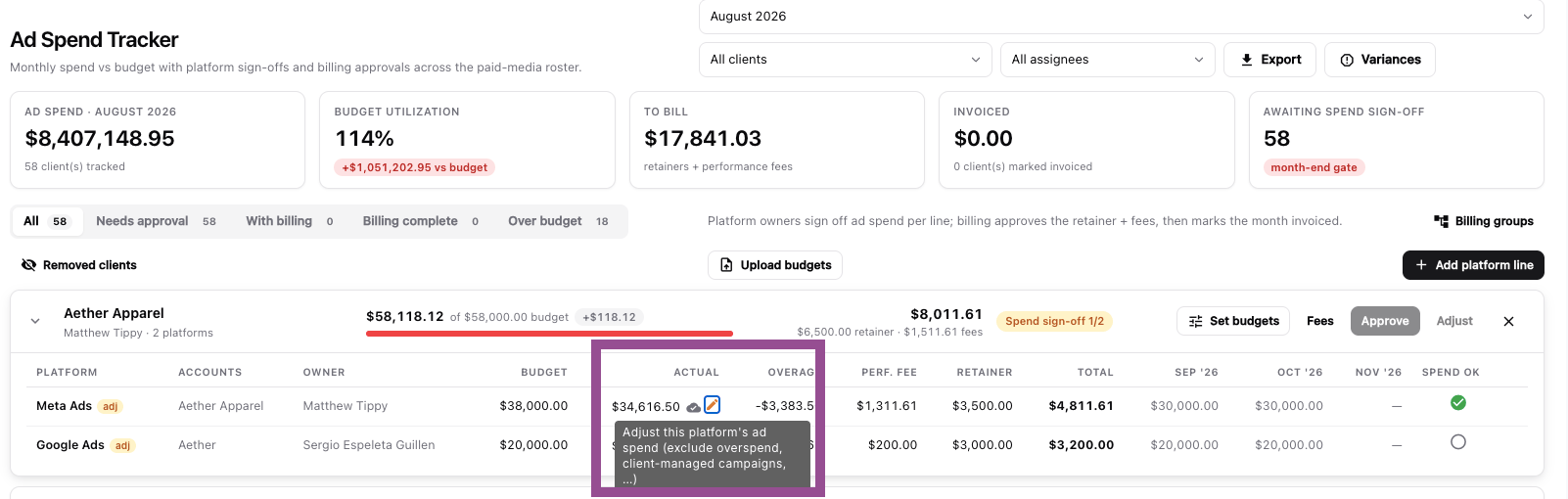
If the amount needs to be corrected or adjusted:
1. Hover over the spend value in the **Actual** column.
2. Click the **pencil icon**.
### If Spend Needs to Be Adjusted
If the amount needs to be corrected or adjusted:
1. Hover over the spend value in the **Actual** column.
2. Click the **pencil icon**.
 1. Enter the corrected spend amount.
2. Enter the reason for the adjustment.
3. Click **Save Adjustment**.
1. Enter the corrected spend amount.
2. Enter the reason for the adjustment.
3. Click **Save Adjustment**.
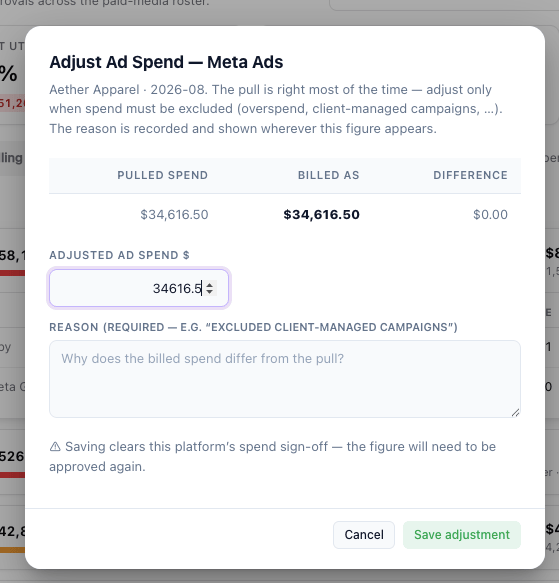 The manually adjusted value will now be used for billing calculations.
After making the adjustment, you must still select **Spend OK** to confirm that the final spend value has been reviewed and approved.
***
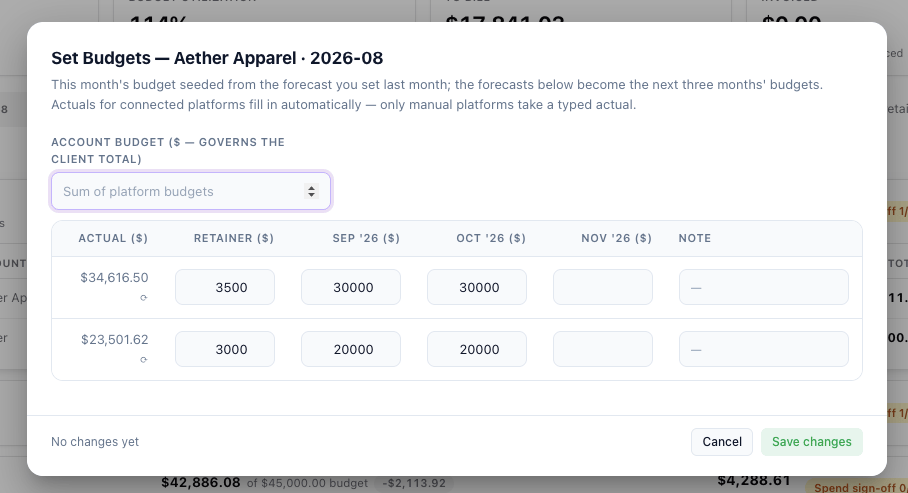
## Step 4: Set Budgets for the Next Three Months
Once you've reviewed the client's actual spend, update their upcoming budgets.
The three budget periods should include the **current month and the following two months**.
For example, when completing August billing in early September, you would enter budgets for **September, October, and November**.
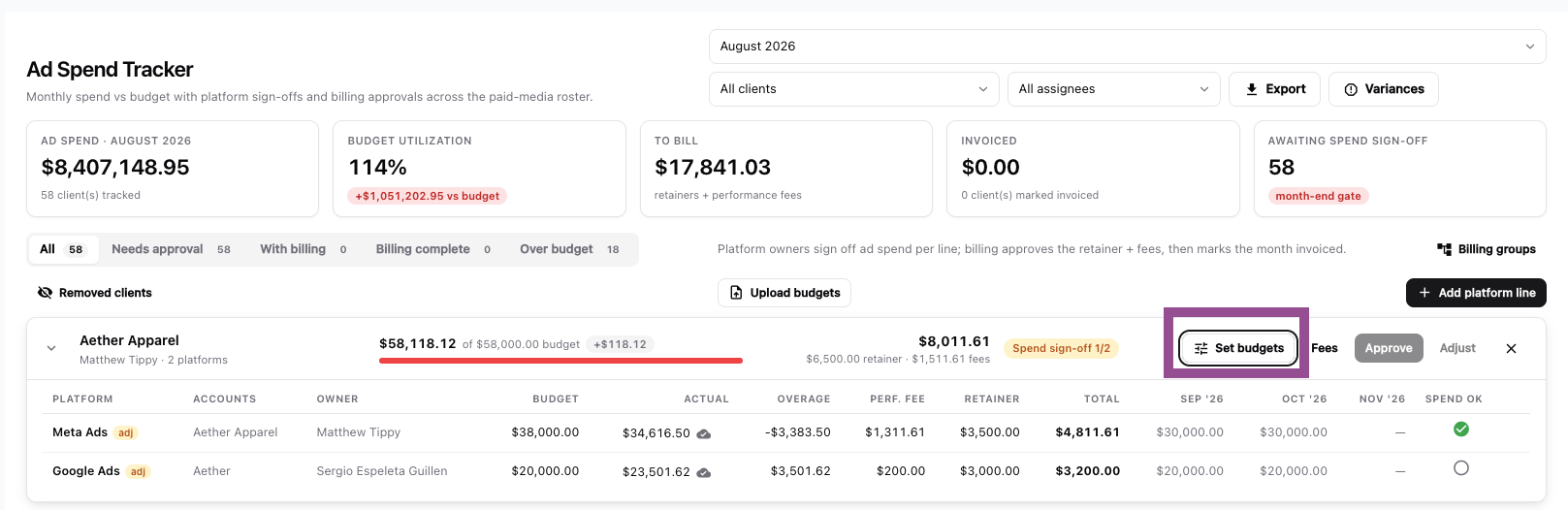
To update budgets:
1. Click **Set Budget** above the client's table.
The manually adjusted value will now be used for billing calculations.
After making the adjustment, you must still select **Spend OK** to confirm that the final spend value has been reviewed and approved.
***
## Step 4: Set Budgets for the Next Three Months
Once you've reviewed the client's actual spend, update their upcoming budgets.
The three budget periods should include the **current month and the following two months**.
For example, when completing August billing in early September, you would enter budgets for **September, October, and November**.
To update budgets:
1. Click **Set Budget** above the client's table.
 1. Enter the budget for each of the next three months.
2. Add any relevant budget notes.
3. Click **Save Changes**.
1. Enter the budget for each of the next three months.
2. Add any relevant budget notes.
3. Click **Save Changes**.
 Repeat this process for each client you're responsible for.
***
## What Happens Next?
Once the required spend has been approved or adjusted and the upcoming budgets have been entered, the client's billing status will move to **With Billing**.
At this point, the Paid Media team's monthly Ad Spend Tracker responsibilities are complete.
SuperOrbital automatically calculates the client's **Retainer, applicable Performance Fee, and Total Billing Amount** based on the fee structure configured for the client.
From there, the Lunar Billing team will complete the billing process and create and send the applicable client invoices through QuickBooks.
Repeat this process for each client you're responsible for.
***
## What Happens Next?
Once the required spend has been approved or adjusted and the upcoming budgets have been entered, the client's billing status will move to **With Billing**.
At this point, the Paid Media team's monthly Ad Spend Tracker responsibilities are complete.
SuperOrbital automatically calculates the client's **Retainer, applicable Performance Fee, and Total Billing Amount** based on the fee structure configured for the client.
From there, the Lunar Billing team will complete the billing process and create and send the applicable client invoices through QuickBooks.